How to Use Hidden Fields in HubSpot Forms (3 Use Cases)
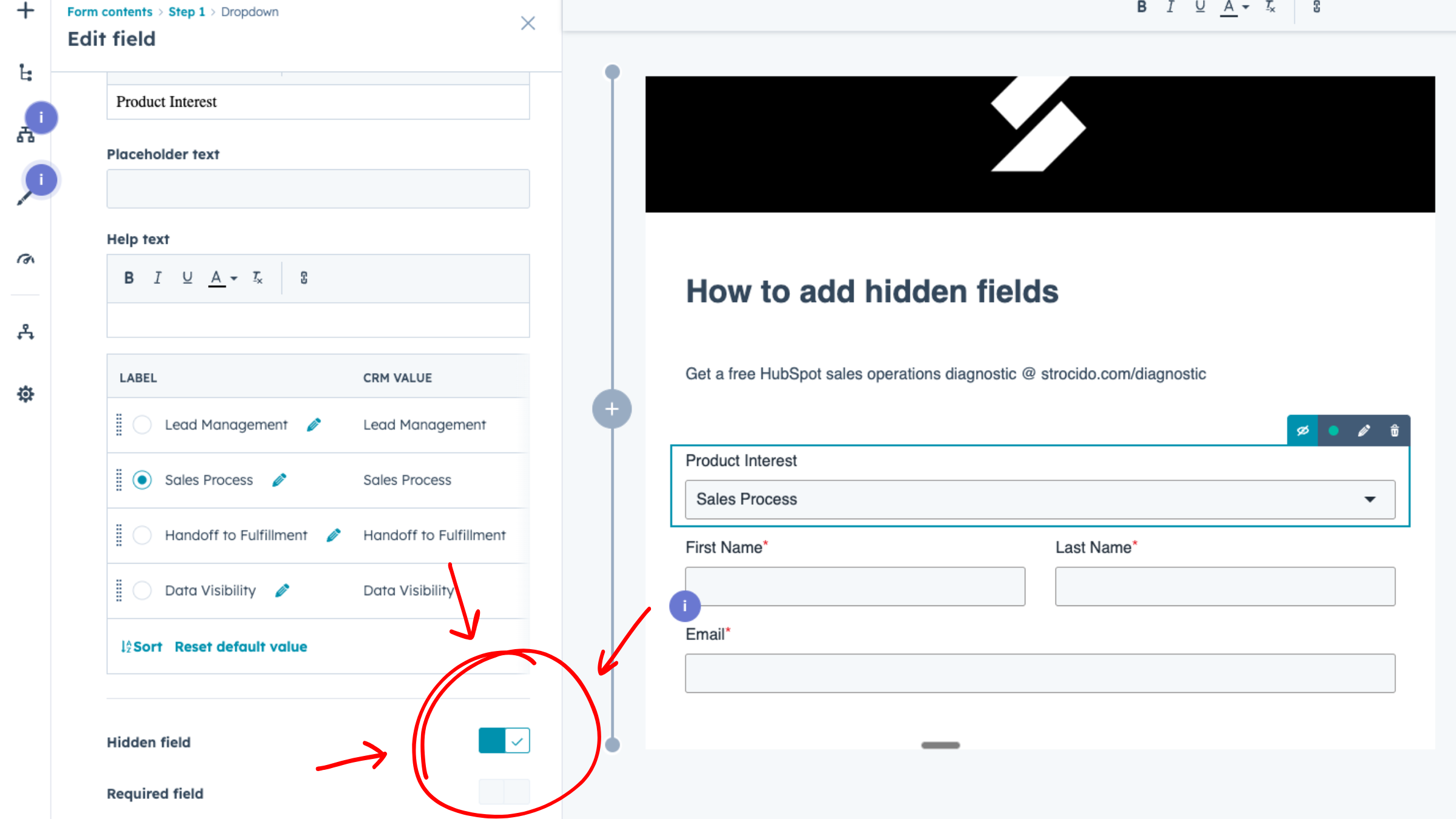
Every form in HubSpot should have at least one hidden field.
Hidden fields let you capture data without asking contacts to fill it in. The value passes into the contact property automatically on submission. This means you can collect information that would be awkward to ask for, segment leads more precisely, and trigger the right follow-up workflows without adding friction to your forms.
If you are not using hidden fields, you are missing one of the simplest ways to improve your lead data quality.
What Hidden Fields Do
A hidden field is a form field that visitors cannot see. When they submit the form, the field passes a predetermined value into the associated contact property.
From the visitor's perspective, nothing changes. They fill out the fields they can see and hit submit.
From your perspective, you get additional data points on every submission. You control what those values are, and you can set different values on different forms or different pages.
This is especially powerful when you use the same form across multiple contexts. Instead of creating dozens of nearly identical forms, you create one form and use hidden fields to differentiate where and why each submission happened.
3 Ways to Use Hidden Fields
1. Set Lifecycle Stage by Form Type
A "Request Demo" form should not create the same type of lead as a "Download eBook" form. The intent is completely different.
Add Lifecycle Stage as a hidden field. Set it to SQL on your demo request form. Set it to Lead on your content download forms.
Now every submission automatically assigns the appropriate lifecycle stage based on the action the contact took. Your sales team sees demo requests immediately. Your nurture workflows catch content downloads. No manual sorting required.
2. Capture Product or Service Interest
You have the same contact form embedded on five different product pages. When a submission comes in, how do you know which product they were looking at?
Add a hidden "Product Interest" field with a different default value on each page. On your CRM product page, set the value to "CRM." On your marketing automation page, set it to "Marketing Automation."
Now when a lead comes in, you know exactly what they were interested in. Route them to the right sales rep. Trigger the right follow-up sequence. Personalize your outreach based on actual interest.
3. Identify Content Offers
You are using one global form for all your eBooks and whitepapers. Smart move for simplicity. But how do you know which asset they downloaded?
Add a hidden field like "Content Downloaded" with a unique value for each asset. When someone downloads your "2024 Marketing Trends Report," the hidden field passes that title into their contact record.
Now you can trigger the right follow-up workflow every time. Send related content. Notify the right team member. Score the lead based on what they downloaded.
How to Set Up a Hidden Field
Marketing → Forms → Select your form
- Click the field you want to hide (or add a new one)
- In the left panel, expand Field options
- Toggle "Hidden field" on
- Set your Default value
- Click Review and update
That is it.
The field will not show to visitors, but the value passes into the contact record on every submission.
Important Limitations
There are two things to keep in mind when using hidden fields.
Required fields cannot be hidden. If a field is set as Required, you cannot make it hidden. This makes sense because a required field needs visitor input, which defeats the purpose of hiding it. If you need a field to always have a value but want it hidden, remove the Required setting and rely on the default value instead.
Pre-populated values can override hidden values. If you have "Pre-populate fields for returning visitors" enabled on your form, HubSpot may overwrite your hidden field value with the contact's existing property value. This matters if you are trying to capture new data on returning visitors. Consider whether pre-population should be on or off for forms with important hidden fields.
Frequently Asked Questions
Are hidden fields available on all HubSpot plans?
Yes. Hidden fields are available on all HubSpot plans, including free. No upgrade required.
Can I use hidden fields with embedded forms?
Yes. Hidden fields work the same way whether your form is on a HubSpot landing page, embedded on your website, or in a popup.
Can I set different hidden values for the same form on different pages?
Yes. You can clone the form and change the hidden field value, or you can use URL parameters to dynamically set the value. The URL parameter method requires some additional setup but allows one form to capture different values based on the page.
What happens if a contact submits a form twice with different hidden values?
The property will update to the most recent value unless you have configured the property to not overwrite existing values. Check your property settings if you want to preserve the original value.
Can I use hidden fields to capture UTM parameters?
Yes. Create contact properties for your UTM values, add them as hidden fields, and HubSpot will capture the values from the URL if present. This is a common use case for campaign tracking. Learn more at the HubSpot Knowledge Base: Hidden Form Fields.
Next Step
Hidden fields are one small example of how proper HubSpot configuration turns a contact form into a lead intelligence system. But most portals have dozens of these quick wins sitting untouched.
We will audit your HubSpot forms, workflows, and properties to find the gaps between how you want your sales process to work and what is actually configured.
Ready to fix your HubSpot setup?
Get a free sales operations audit to see what's broken and what it would take to fix it.