How to Fix 90% Offline Sources in HubSpot Contact Reports
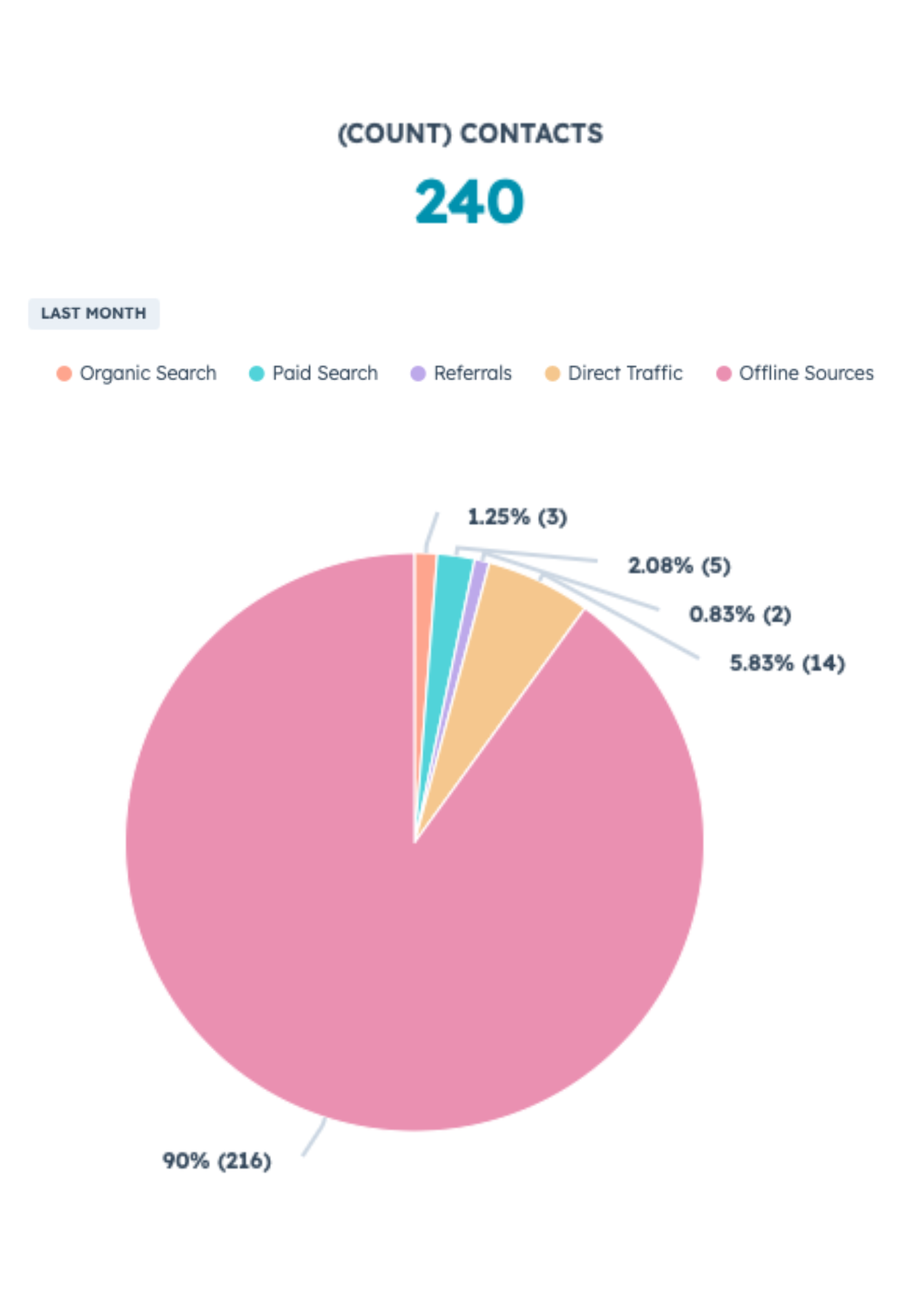
When you pull up your Contact Source Report in HubSpot and see 90% or more of your contacts labeled as "Offline Sources," you are looking at a marketing black hole. That single bucket tells you nothing about what is actually working, what is wasting budget, or where to double down.
This is one of the most common reporting problems in HubSpot. And the fix takes less than five minutes.
Why This Happens
"Offline Sources" is HubSpot's default label for any contact that could not be tied to a tracked online visit. This includes contacts created through:
- File imports
- Integrations with other tools
- Manual entry by your team
- API connections
None of these creation methods involve a web session that HubSpot can track. So HubSpot groups them all together under one unhelpful label.
The Real Problem With Offline Sources
When your reporting shows a giant "Offline Sources" slice, you lose visibility into critical questions:
Which lead sources are actually filling your pipeline? You cannot tell if your trade show list, your partner integration, or your sales team's manual entries are driving results.
Where should you invest more resources? Without granular data, you are guessing.
Which integrations are creating the most contacts? If you have multiple tools syncing contacts into HubSpot, you need to know which ones are contributing.
The good news: HubSpot already captures this data. You just need to know where to look.
How to See Where Offline Sources Are Coming From
There are two ways to break down Offline Sources into actionable categories. Use the first method for high-level reporting. Use the second method when you need contact-level detail.
Option 1: Build a Report
Reporting → Reports → Create Report → Custom Report Builder
- Select Contacts as your primary data source
- Choose Pie Chart as visualization
- Add filter: Original Traffic Source is any of "Offline Sources"
- Set value: Count of contacts
- Break down by: Record Source
Now instead of one useless bucket, you will see:
→ Import
→ Integration
→ CRM UI (manually created)
→ Forms
→ API
Add a date range filter if you need to see a specific time period.
Option 2: Create a Saved View for Contact-Level Detail
If you want to see exactly which import or integration created each contact:
CRM → Contacts → Edit columns
Add:
→ Record Source
→ Record Source Detail 1
Save as a view.
Now you do not just see "Import," you see which import file.
You do not just see "Integration," you see which integration created the contact.
Understanding Record Source vs. Traffic Source
These two properties measure different things, and confusing them leads to reporting mistakes.
Record Source tells you how the record was technically created in your CRM. This includes import, form submission, integration sync, manual entry, and API creation. It answers the question: "How did this contact record get into HubSpot?"
Original Traffic Source (and Latest Traffic Source) tells you how the contact interacted with your web content. This includes organic search, paid social, direct traffic, email marketing clicks, and referrals. It answers the question: "How did this person find and engage with our website?"
A contact can have a Record Source of "Integration" and an Original Traffic Source of "Organic Search" if they visited your site organically, then later got synced from another tool. Both properties are accurate. They just measure different things.
What You Can Do With This Data
Once you split Offline Sources by Record Source, you unlock several capabilities:
Measure import quality. See which imported lists convert at higher rates. Stop wasting time on list sources that underperform.
Audit your integrations. Identify which connected tools are sending you the most contacts. Decide if those integrations are worth maintaining.
Track sales-created contacts. See how many contacts your team creates manually versus how many come from marketing efforts. Use this to inform territory planning and lead distribution.
Clean up your database. Identify bulk imports that created low-quality contacts. Build lists based on Record Source to segment and manage them.
Improve attribution reporting. Once you understand the composition of your Offline Sources, you can create more accurate pipeline and revenue reports.
Frequently Asked Questions
Can I change a contact's Record Source after it is created?
No. Record Source is set at the moment of creation and cannot be edited. This is by design, as it preserves the integrity of your reporting.
Why do some of my form submissions show as Offline Sources?
This can happen if the form submission occurred without a tracked session, such as through an API submission or a form embedded on a non-HubSpot-tracked page.
What is Record Source Detail 1?
This property provides additional context about the Record Source. For imports, it shows the import file name. For integrations, it shows the integration name. For API-created contacts, it shows the API source. Learn more at the HubSpot Knowledge Base: Record Source Property.
Does this work on all HubSpot plans?
Yes. The Record Source property and Custom Report Builder are available on all HubSpot plans, including free.
Next Step
If your Contact Source Reports have been a blind spot, this five-minute fix changes that. But source reporting is just one piece of building a HubSpot portal that actually drives revenue.
We will audit your HubSpot portal and show you exactly where your sales operations are leaking time and pipeline.
Ready to fix your HubSpot setup?
Get a free sales operations audit to see what's broken and what it would take to fix it.